Creating an Email in DirectAdmin
1. Log in to DirectAdmin.
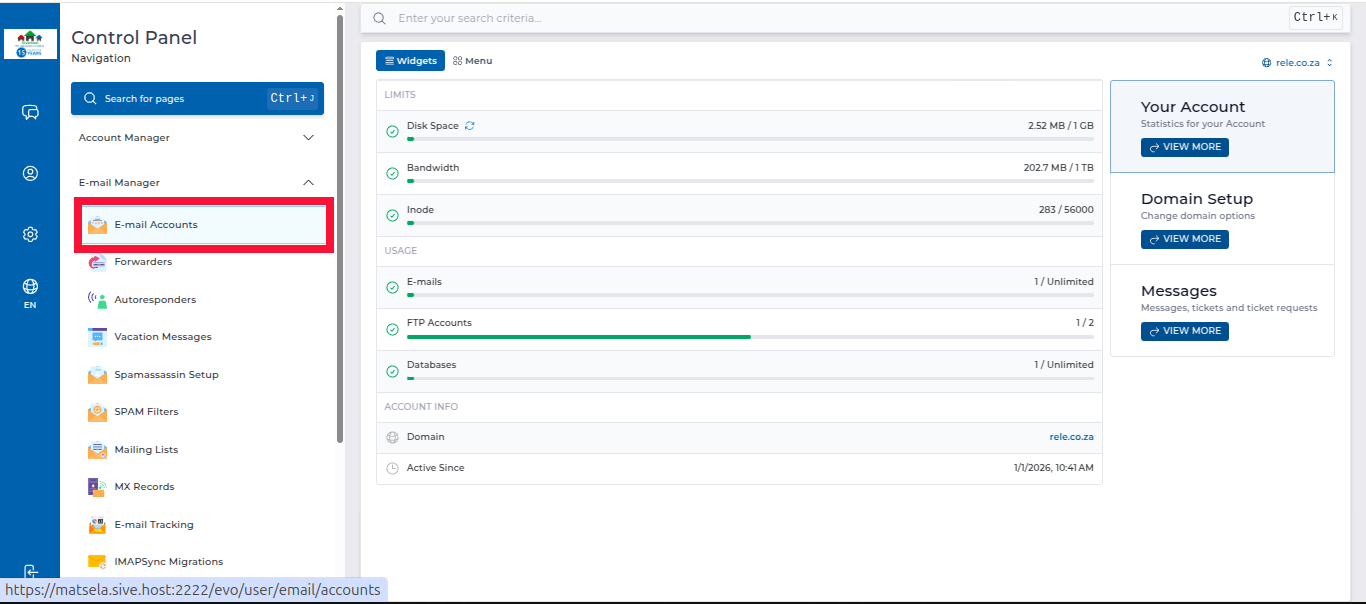
2. In the left panel menu, click the dropdown arrow next to "Email Manager", then select "Email Accounts".
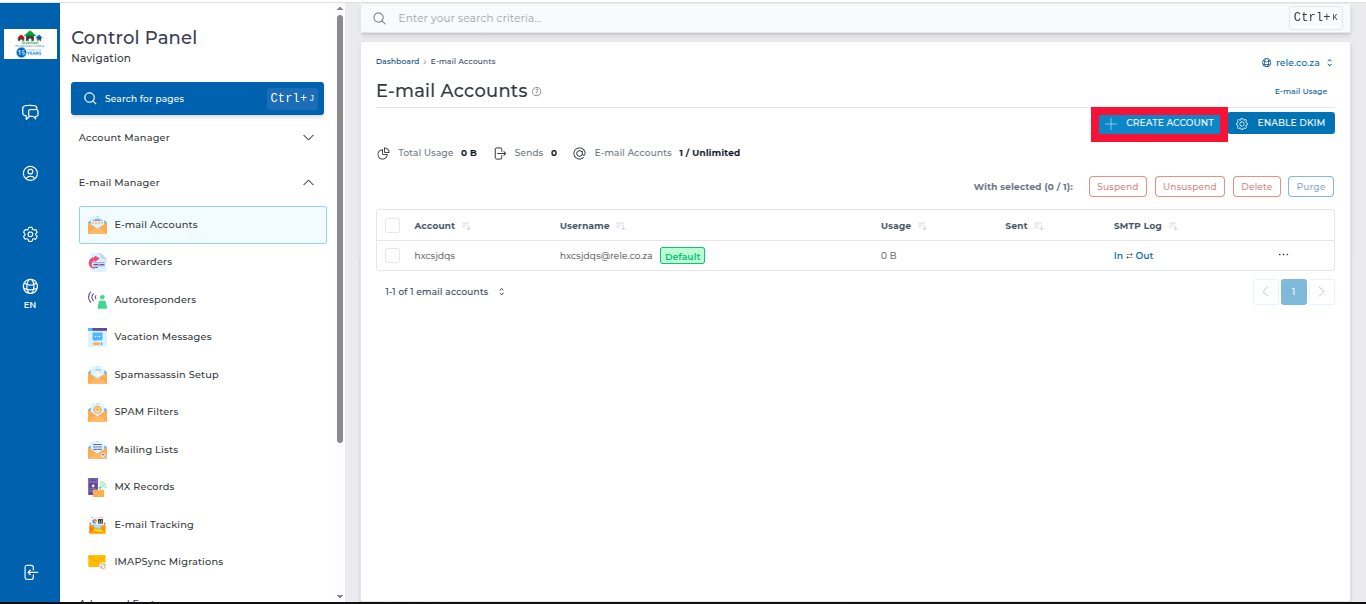
3. Click "Create Account" on the right-hand side.
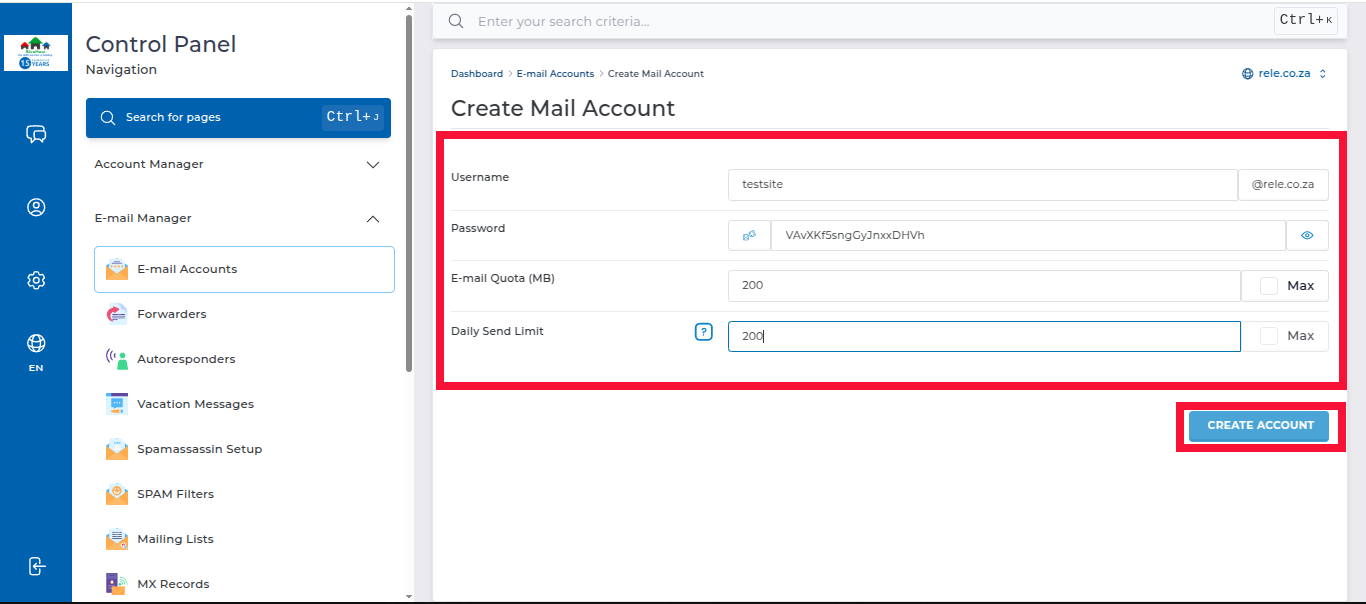
4. Fill in the following details:
- Username
- Password
- Email Quota (MB) (refers to the amount of storage space allocated to an email account in megabytes (MB). It determines how much space the account can use for storing emails, attachments, and other data.)
- Daily Send Limit
Click "Create Account" to create the email account.
5. Once created, you will see a pop-up with your login credentials. Click close
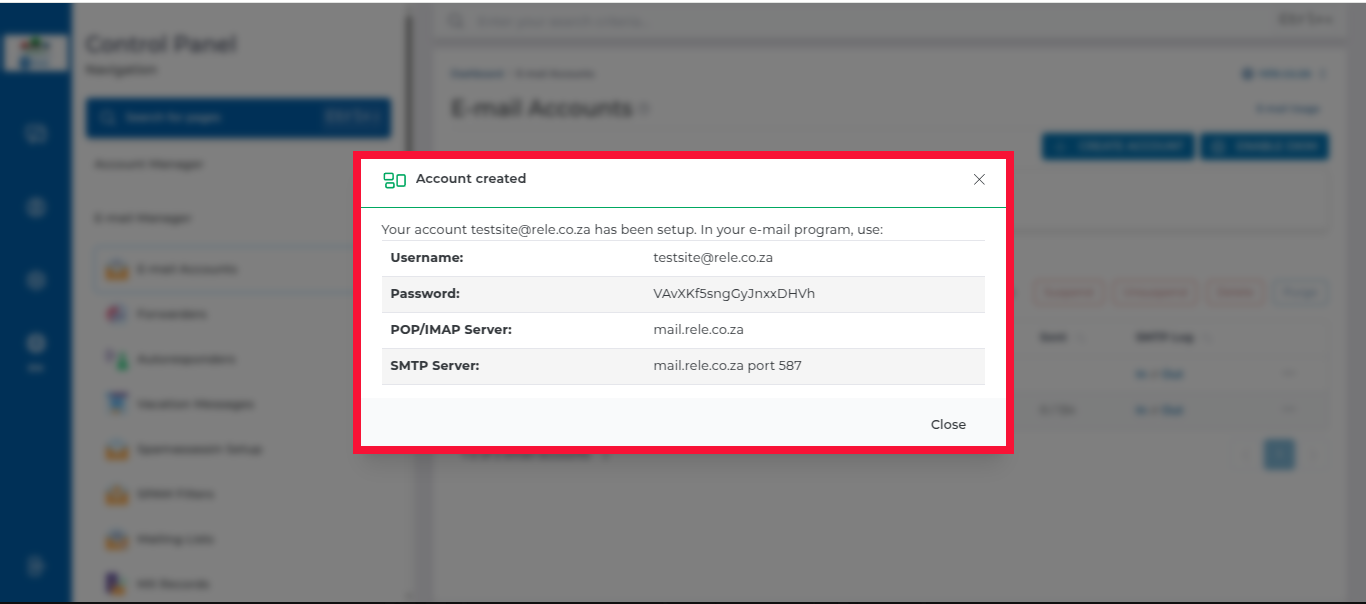
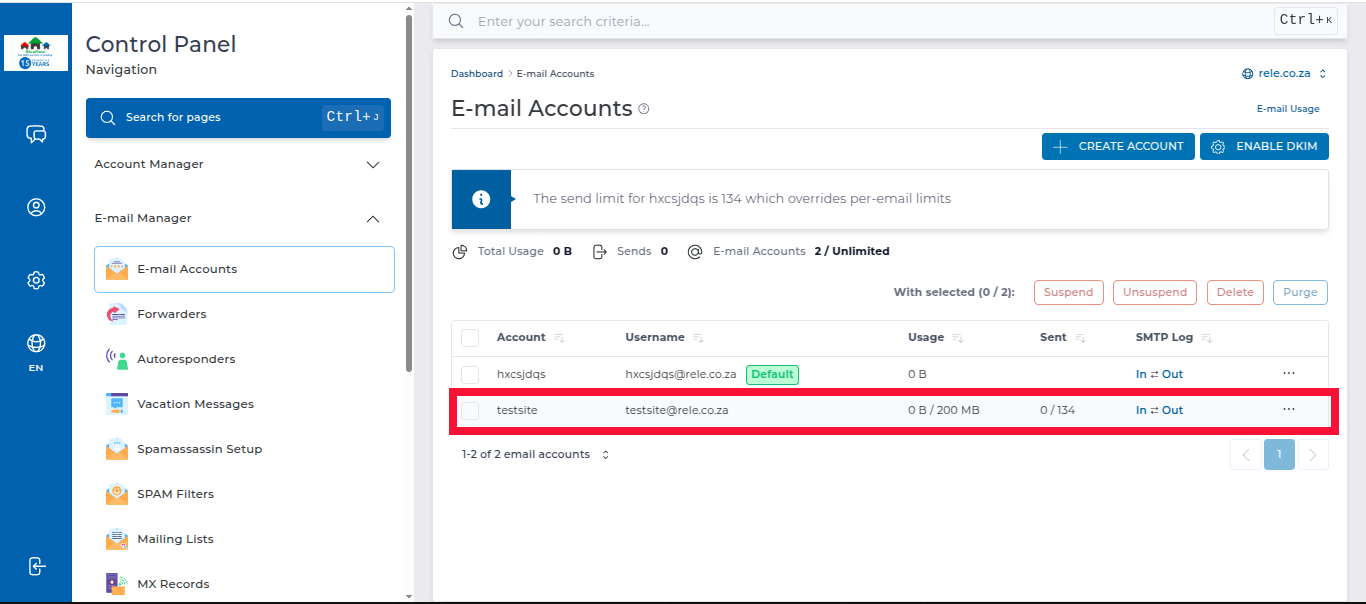
Your email account will appear under Email Accounts to show that it been successfully created